Otter.ai has become the leading AI-powered transcription and meeting assistant, helping professionals capture, organize, and share conversation insights from meetings, interviews, lectures, and any spoken content. Unlike simple speech-to-text tools, Otter.ai provides a complete meeting intelligence platform that transcribes in real time, identifies speakers, generates summaries, extracts action items, and integrates with calendar and video conferencing systems. This guide covers Otter.ai's features, practical workflows, and best practices for maximizing productivity.
Getting Started with Otter.ai
Game changer.
Otter.ai is available through its web application at otter.ai and through mobile apps for iOS and Android. The platform offers several subscription tiers. The Free plan provides 300 transcription minutes per month with basic features, 30-minute transcription limits per conversation, and limited export options. Otter Pro at $16.99 per month (billed annually) offers 1,200 transcription minutes per month, removes the per-conversation duration limit, includes advanced export formats, and provides Otter Assistant for automatic meeting joining and notes delivery. The Business plan at $30 per user per month (billed annually) adds team administration features, centralized billing, priority support, and advanced security controls. The Enterprise plan offers custom pricing with additional features like SSO, data retention policies, and dedicated support. Getting started is simple: create an Otter.ai account using your email or Google/Apple/Microsoft credentials. Once logged in, you can immediately start recording and transcribing by clicking the record button in the web app or mobile app. Otter will transcribe speech in real time, identifying different speakers and displaying the text as it's captured. The transcription accuracy depends on audio quality and speaker clarity but generally exceeds 95% for clear English speech. Otter supports English, Spanish, French, German, Japanese, and other major languages, with best results in English. For mobile users, the Otter app can transcribe in-person conversations using the device's microphone, making it useful for lectures, client meetings, and brainstorming sessions. The app works in the background, so you can take notes or reference materials while Otter captures the audio and generates the transcript. After a conversation ends, Otter processes the audio and produces a searchable, editable transcript with speaker labels, a summary with key points and action items, and a keyword overview. All transcripts are stored in your Otter account and can be organized into folders, searched, and shared with others.
Otter Assistant and Meeting Automation
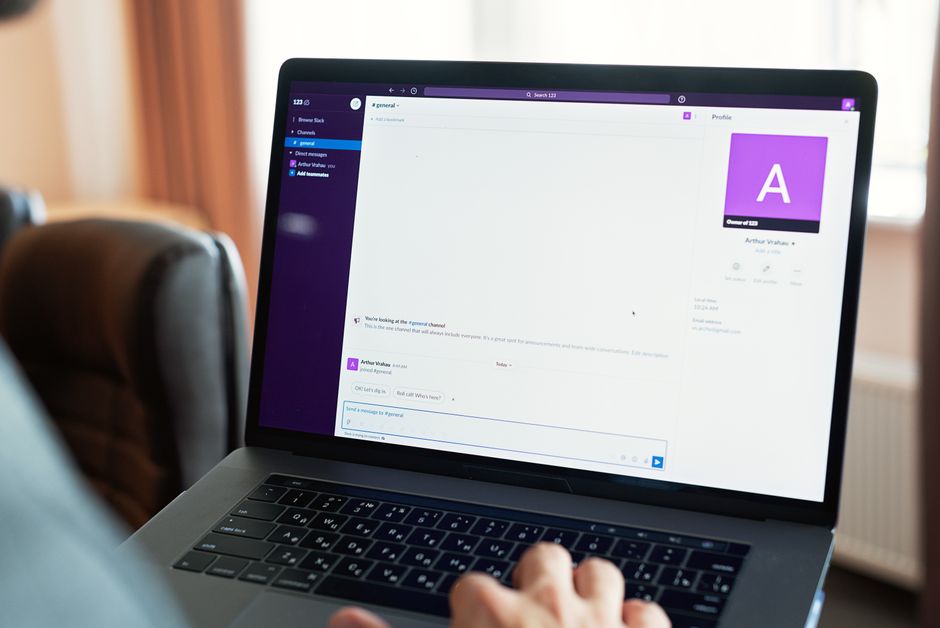
Otter Assistant is the platform's most powerful productivity feature, automating the process of joining, transcribing, and delivering meeting notes. On Otter Pro and higher plans, Otter Assistant integrates directly with your Google Calendar or Microsoft 365 calendar. Once connected, it can automatically join your scheduled meetings on Zoom, Google Meet, Microsoft Teams, or Webex, record the audio, transcribe the conversation in real time, and deliver the completed transcript and AI-generated summary to your Otter account and email inbox after the meeting. To set up Otter Assistant, connect your calendar in Otter settings. You can configure it to join all meetings automatically, only specified meetings, or meetings matching certain criteria (such as keywords in the meeting title). You can also manually add Otter Assistant to individual calendar events by including Otter Assistant's email address in the meeting invite. During a meeting, Otter Assistant appears as a participant, records the audio, and creates a live transcript that you can view in real time through the Otter web app. Meeting participants can also see the live transcript if you share the Otter meeting link. This transparency is helpful for accessibility, allowing team members who can't attend the meeting to follow along in text, and for non-native speakers who benefit from reading while listening. After the meeting, Otter processes the recording and generates an AI Meeting Notes summary that includes: automated meeting title derived from the conversation, a concise summary of what was discussed, bullet-point action items with assigned owners (when speakers are identified), keywords and topics covered, and the full searchable transcript with speaker labels and timestamps. The summary is delivered to your email and available in your Otter account within minutes of the meeting ending. For recurring meetings, Otter creates a single "conversation" thread where all transcripts from that series are aggregated, making it easy to track discussions and decisions across weeks or months. For teams, Otter Assistant can be configured to share meeting notes automatically with the entire team or with specific individuals based on meeting attendance.
Key Features: Speaker Identification, Search, and Organization
Otter.ai includes several features that make it more than just a transcription tool -- iit'sa comprehensive conversation intelligence platform. Speaker identification is one of the most important features. During transcription, Otter automatically detects different voices and labels them as Speaker 1, Speaker 2, etc. On paid plans, you can teach Otter to recognize specific people by name. Upload voice samples or have speakers say their names during a meeting, and Otter learns to identify them in future conversations. This is invaluable for understanding who said what in meeting transcripts, and it enables the action item extraction feature to assign tasks to specific individuals. The search functionality is remarkably powerful. Otter indexes every word from every transcript, making the entire archive searchable. You can search for specific terms, phrases, speaker names, or project names and instantly find every conversation where they were mentioned. The search results show highlighted excerpts with timestamps and links to the full transcript. This turns your Otter archive into a searchable knowledge base of every meeting, interview, and conversation you've recorded. The folder organization system helps manage large transcript libraries. Create folders by project, client, quarter, or any structure that matches your workflow. Transcripts can be moved between folders, tagged with custom labels, and shared with different access permissions. The Comments and Highlights features enable collaboration on transcripts. Team members can highlight important passages, add comments with timestamps, and tag colleagues for follow-up. This turns the transcript from a static record into an active reference document. The Export capabilities allow you to download transcripts and summaries in multiple formats, including plain text, PDF, DOCX, SRT (for captions), and CSV. This flexibility means you can integrate Otter content into your existing tools and workflows. The integration with popular CRM systems, project management tools (Asana, Trello, Notion), and communication platforms (Slack, Teams) further extends Otter's value, automatically pushing meeting notes and action items into the systems your team already uses.
Practical Applications Across Professions
Otter.ai serves diverse professional use cases across industries. For business professionals and managers, Otter replaces manual note-taking, allowing them to focus fully on conversation during meetings. The AI-generated summaries capture key decisions and action items, reducing the "what did we agree on?" follow-up emails. Managers who attend multiple meetings daily can build a searchable archive of decisions, commitments, and discussions that prevents information loss and miscommunication. For journalists and writers, Otter is invaluable for interview transcription. Record interviews on your phone, and Otter transcribes them with speaker identification, making it easy to search for specific quotes, verify accuracy, and extract key material for articles. The ability to share transcripts with editors or fact-checkers streamlines the editorial workflow. For researchers and academics, Otter transcribes lectures, focus groups, research interviews, and conference presentations. The search and organization features make qualitative data analysis more efficient by enabling researchers to code and retrieve specific themes across multiple transcripts. For students, Otter records and transcribes lectures in real time, creating a searchable study aid that combines the instructor's words with the student's own notes (which can be added as comments within the transcript). The ability to search for specific topics mentioned in lectures makes exam preparation more efficient. For legal professionals, Otter can transcribe client meetings, depositions, court proceedings (where permitted), and internal case discussions. The timestamped, speaker-labeled transcripts provide reliable records, and the search capabilities help locate specific testimony or evidence. For healthcare professionals, Otter transcribes patient consultations (with appropriate consent) and team meetings, with HIPAA compliance available on Business and Enterprise plans. For sales professionals, Otter captures prospect meetings and discovery calls, providing searchable records that can be analyzed for objection patterns, competitive insights, and next steps. The automatic CRM integration pushes meeting notes and action items directly into Salesforce, HubSpot, or other CRM systems. For customer support teams, Otter transcribes support calls and chat interactions, enabling quality analysis, training material creation, and identification of common customer issues.
Tips for Maximizing Transcription Accuracy
While Otter.ai's automatic transcription is highly accurate, several practices can improve results, especially in challenging audio conditions. First, prioritize audio quality. Use an external microphone when possible, especially in noisy environments. For in-person meetings, place the recording device centrally. For virtual meetings, ensure all participants have good microphone setups. Background noise is the most common cause of transcription errors. Second, coach speakers to enunciate clearly and avoid talking over each other. Overlapping speech is challenging for any transcription system, and Otter performs best when one person speaks at a time. For panel discussions or group meetings, encouraging turn-taking significantly improves accuracy. Third, use the "Add Vocabulary" feature for industry-specific terminology, names, acronyms, and technical terms. If your work involves specialized vocabulary (medical terms, legal jargon, product names), adding them to Otter's custom dictionary ensures they are transcribed correctly rather than approximated phonetically. Fourth, review and edit transcripts after meetings. Otter provides an editing interface where you can correct mis-transcriptions, add speaker names, and refine the summary. Edited transcripts improve Otter's future accuracy as the model learns from corrections. Fifth, for critical meetings, use the live transcript feature. Watching the transcript appear in real time allows you to catch and correct errors immediately by clarifying misunderstood terms or spelling out names. Sixth, upload existing audio or video files for transcription. Otter can process pre-recorded files in various formats (MP3, WAV, M4A, MP4, MOV), allowing you to transcribe archived meetings, podcasts, or recorded interviews. Seventh, leverage the mobile app's built-in recorder for in-person conversations. The app is optimized for voice recording and provides the best audio capture for in-person transcription. Finally, understand Otter's limitations. Strong accents, very rapid speech, heavy background noise, and highly technical language all reduce accuracy. For critical applications, always review and edit the transcript rather than relying on raw output.
Otter for Teams and Enterprise
I'm not exaggerating.
My take: otter's Business and Enterprise tiers provide features specifically designed for team and organizational deployment. Team administration capabilities include user management, centralized billing, usage analytics, and policy controls. Administrators can see how many transcription minutes the team is using, which features are most popular, and identify power users who might serve as internal champions. Security features on Business and Enterprise plans include Single Sign-On (SSO) for centralized authentication, data encryption at rest and in transit, the ability to set data retention policies (automatically deleting transcripts after a specified period), and compliance certifications including SOC 2 Type II and HIPAA. For Enterprise customers, Otter offers additional security controls including data residency options (keeping data in specific geographic regions) and custom data processing agreements. Team collaboration features include shared folders and workspaces where team members can collaborate on transcripts, add comments, and share highlights. Meeting notes can be automatically shared with the entire team or routed to specific channels in Slack or Teams. The integration ecosystem extends to Salesforce, HubSpot, Asana, Trello, Notion, Slack, and Microsoft Teams, allowing teams to push meeting insights directly into their existing workflow tools. For organizations concerned about AI data usage, Otter offers a "No Train" policy in its Business and Enterprise agreements, ensuring that customer data is not used to train or improve Otter's AI models. This is an increasingly important consideration for enterprises with strict data governance requirements. For onboarding new users, Otter provides templates and best practice guides, and the Business plan includes dedicated customer success support. Many organizations find that Otter's value compounds over time as the searchable transcript archive grows, turning the tool from a convenience into an essential knowledge management system.
What I'd Tell My Past Self
- Otter.ai provides real-time transcription, AI meeting summaries, action item extraction, and speaker identification for meetings, interviews, lectures, and conversations.
- Otter Assistant integrates with Google Calendar and Microsoft 365 to automatically join, transcribe, and deliver notes for scheduled Zoom, Google Meet, Teams, and Webex meetings. — game changer in my workflow
- Key features include speaker identification and labeling, full-text search across the entire transcript archive, folder organization, collaboration tools, and CRM/project management integrations. — your experience may differ, but this worked for me
- Practical applications span business meetings, journalism interviews, academic research, legal proceedings, sales calls, customer support analysis, and lecture transcription.
- Transcription accuracy is improved with good audio quality, clear speaker articulation, custom vocabulary for specialized terms, and post-meeting editing. — took me a while to figure this out
- Business and Enterprise plans offer team administration, SSO, HIPAA compliance, data retention policies, and integrations with major business tools.
For more AI productivity tools, explore our Notion AI Writing Assistant Guide and Microsoft Copilot Complete Guide to build a comprehensive AI-powered productivity toolkit.
Does this live up to the hype?