Cursor has rapidly emerged as the leading AI-first code editor, reimagining the development environment with AI at its core rather than as an add-on. While traditional editors like VS Code offer AI through extensions like GitHub Copilot, Cursor was built from the ground up as an AI-native development environment. This tutorial covers everything from installation to advanced AI features, helping you transform your coding workflow with intelligent assistance at every step.
What Makes Cursor Different from VS Code
Cursor is a fork of VS Code, meaning it shares the same foundational codebase, extension ecosystem, and user interface as Microsoft's popular editor. However, Cursor adds deep AI integration that goes far beyond what extensions can provide. The most fundamental difference is that Cursor indexes your entire codebase and uses that understanding to provide contextually aware AI assistance across all its features. When you ask Cursor a question about your code, it doesn't just analyze the open file -- it understands the project structure, dependencies, imported modules, function definitions, and even git history. This codebase-aware intelligence powers Cursor's three core AI features: inline code suggestions (like Copilot but with full codebase context), the AI chat panel (which can see and understand your entire project), and agent mode (which can autonomously plan and execute multi-step development tasks). Cursor uses a combination of models including GPT-4, Claude 3.5, and its own fine-tuned models, and you can choose which model powers different features based on your preferences. The editor includes specialized AI features like Cursor Tab (AI-powered code completions), Cursor Prediction (predicting your next cursor position), and Apply (applying AI-generated code changes to specific files). Cursor is available for Windows, macOS, and Linux, and supports all major programming languages. It comes in a free tier (limited AI features and slower generation speeds) and a Pro subscription at $20 per month (unlimited AI features, faster model access, and priority support). The Business plan at $40 per user per month adds team administration, centralized billing, and privacy features. For developers who want to migrate gradually, Cursor can import all your VS Code settings, extensions, keybindings, and themes, making the transition seamless.
Core AI Features: Tab, Chat, and Composer
Here's why.
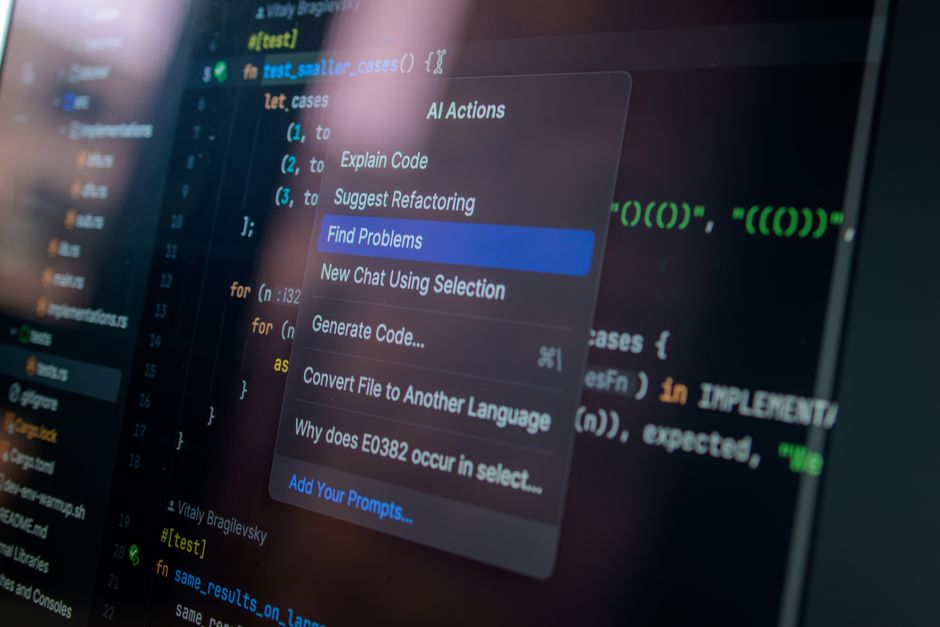
Cursor's AI capabilities are organized around three primary interfaces, each designed for different types of coding tasks. Cursor Tab is the AI-powered code completion system that suggests code as you type, similar to GitHub Copilot but with deeper codebase context. As you write code or type comments, Cursor Tab analyzes your open files, recent edits, and project structure to suggest contextually appropriate completions. Unlike Copilot's single-line ghost text, Cursor Tab can suggest multi-line completions, entire function bodies, and even complex code blocks. You can accept a suggestion with Tab, cycle through alternatives with Alt+] and Alt+[, or partially accept individual words. The tab completion model has been fine-tuned specifically for code, resulting in suggestions that are more likely to match your project's patterns and conventions. The Chat panel (accessible with Cmd+I) provides a conversational AI interface that can see your entire codebase. Unlike Copilot Chat, which primarily sees the current file, Cursor Chat understands the full project context. You can ask questions like "How is the authentication system implemented in this project?" or "Find all places where we handle payment processing and suggest security improvements." Chat can reference specific files, functions, and symbols by name, and its responses include clickable file references that open the relevant code. The Composer (accessible with Cmd+K or Cmd+Shift+I) is Cursor's most powerful feature -- a multi-file editing interface that can make changes across multiple files simultaneously based on a single prompt. You describe the feature you want to build or the change you want to make, and Composer plans the implementation, identifies which files need modification, proposes changes, and lets you review and apply them. For example, you can say "Add a dark mode toggle to the settings page with a React context provider, a custom hook, and persisted preferences in localStorage" -- Composer will generate the context provider, the hook, the toggle component, and the settings page updates, and show you a diff view of all changes across all affected files before you accept them.
Agent Mode: Autonomous Development Assistance
Agent Mode represents Cursor's most advanced AI capability, elevating the editor from a helpful assistant to an autonomous development partner. When you activate Agent Mode (via the chat panel), the AI gains the ability to not just read and suggest code, but to actively execute terminal commands, run tests, install packages, and make file edits -- all within your explicit supervision. In Agent Mode, you describe a task in natural language, such as "Set up a new Next.js project with TypeScript, configure ESLint and Prettier with standard settings, install Tailwind CSS with the typography plugin, and create a basic landing page component." The agent then creates a plan, executes each step, shows you the results, and asks for confirmation at key decision points. The agent can run terminal commands (npm install, git init, npx create-next-app), read and edit files across the project structure, search for specific code patterns, run tests to verify changes work correctly, and iterate based on error output. For debugging workflows, you can describe a bug and ask the agent to find and fix it. The agent can search through your codebase for the bug's symptoms, run the application to reproduce the issue, propose a fix, apply it, and run tests to confirm the fix works. This autonomous capability makes Agent Mode particularly powerful for: setting up new projects from scratch, implementing features that span multiple files, debugging complex issues that require tracing code across the application, performing migrations and refactors, and adding tests for existing code. The agent operates under guardrails -- it always shows you what it plans to do, asks for confirmation before destructive operations, and provides clear output about what it executed and the results. You can also customize the agent's behavior through custom instructions in Cursor settings, specifying coding conventions, preferred libraries, architecture patterns, and testing requirements. For teams, these custom instructions can be shared via project-level settings files, ensuring the agent follows the team's established patterns.
Codebase Indexing and Context Management
That's the short version.
Cursor's power comes from its deep understanding of your codebase, achieved through automatic indexing that builds a semantic map of your project. When you open a project in Cursor, it indexes all files, creating vector embeddings that allow the AI to understand relationships between code elements -- which files define which functions, how modules import from each other, the structure of your types and interfaces, and the patterns used throughout the codebase. This indexing happens in the background and updates as you make changes. The indexed codebase powers all of Cursor's AI features, but you can also use it explicitly through the @-symbol system. In chat and composer, you can reference specific context using @file (to include a specific file's content), @folder (to include an entire folder's structure and content), @code (to reference a specific function or class by name), @docs (to pull in documentation for libraries and frameworks), and @web (to search the web for current information). This precision context management means you can give the AI exactly the information it needs without overwhelming it with irrelevant code. For large monorepos, you can configure Cursor to index only specific directories or file types, reducing resource usage while maintaining quality context for your working areas. The index also supports codebase-wide search and refactoring -- you can ask "Find all instances where we import from the legacy API client and suggest refactoring patterns" and Cursor will search its indexed understanding to provide comprehensive results. For teams working with extensive codebases, the indexing also enables the "Code Review" feature, where Cursor can analyze your git diff or staged changes and provide AI-powered code review comments, catching potential bugs, style issues, and security concerns before they reach your team. The indexing respects .gitignore rules and can be configured to exclude generated files, third-party dependencies, and other noise that would dilute the AI's understanding of your actual application code.
Advanced Workflows and Tips
Getting the most out of Cursor requires learning how to combine its features into efficient workflows. One of the most effective patterns is "Explain then Generate" -- before asking Cursor to write code, have it explain the relevant existing code to ensure you both understand the context. For example, "Explain how the notification system works" followed by "Add support for push notifications using the same pattern." This two-step approach dramatically improves the quality of generated code. Another powerful workflow is iterative refinement through Composer. Start with a broad prompt, review the generated code across all files, provide feedback in natural language ("Move the configuration into a separate file," "Add error handling for network failures," "Use React Query instead of useEffect for data fetching"), and watch Composer update all affected files. Each iteration is tracked in the conversation history, so you can revert if a direction ddoesn'twork out. For test-driven development, write the test first, then ask Cursor to "Make this test pass." This works remarkably well because the test serves as an unambiguous specification of what the code should do. For refactoring large codebases, use Agent Mode with specific instructions about preserving behavior. For keyboard-centric developers, mastering Cursor's shortcuts is essential -- Cmd+K opens inline code generation, Cmd+L toggles the chat panel, Cmd+Shift+L opens Composer, and Ctrl+Enter opens the Apply interface for selective code changes. For privacy-conscious developers, Cursor offers a Privacy Mode that ensures your code isn't used for model training, available on Pro and Business plans. Cursor also supports local models through Ollama integration, allowing fully offline AI-assisted coding with smaller but capable open-source models. For team collaboration, Cursor supports shared AI rules (defined in .cursorrules files in your project root), ensuring all team members get consistent AI behavior aligned with your project's conventions and standards.
Comparing Cursor with GitHub Copilot and VS Code
Understanding how Cursor compares to alternatives helps you choose the right development environment. The most common comparison is Cursor versus VS Code with GitHub Copilot. VS Code with Copilot provides AI code completion and chat through extensions, but the AI dodoesn'tave deep understanding of your entire codebase. Copilot primarily sees the current file and whichever files you have open in tabs. Cursor, with its automatic codebase indexing, provides context-aware AI across all features -- tab completion, chat, and composer all benefit from understanding your project beyond the current file. Agent Mode is a capability that Copilot doedoesn'tfer; having an AI that can autonomously run commands, edit multiple files, and debug is a fundamentally different level of assistance. However, VS Code remains the most extensible editor with the largest extension ecosystem, and for developers who primarily need basic code completion and have well-established VS Code workflows, standard VS Code plus Copilot may be sufficient. Cursor works best for developers who want to integrate AI deeply into every aspect of their coding process, from initial project setup through debugging and refactoring. Amazon Q Developer offers similar AI features within VS Code and JetBrains but lacks Cursor's agent mode and codebase indexing depth. Cursor also faces competition from new AI-native IDEs like Windsurf and Zed, which offer different philosophies about AI integration. The choice ultimately depends on your workflow preferences: if you want the most powerful AI features in a familiar VS Code interface, Cursor is the clear leader. If you prioritize extension ecosystem diversity and lightweight AI assistance, VS Code with Copilot remains a strong option.
So, Should You Try It?
Honestly, - Cursor is an AI-first code editor (fork of VS Code) with deep codebase indexing that powers context-aware AI across all features, distinguishing it from extension-based AI tools.
- Core AI interfaces include Cursor Tab (code completions with full project context), Chat (conversational codebase Q&A), and Composer (multi-file AI editing from a single prompt).
- Agent Mode enables autonomous development assistance, executing terminal commands, editing files, and running tests under human supervision.
- Codebase indexing automatically builds a semantic map of your project, and the @-symbol system allows precise context control in AI queries.
- Advanced workflows include "Explain then Generate" for context alignment, iterative Composer refinement, test-first development, and shared .cursorrules for team consistency.
- Cursor offers free and Pro ($20/month) tiers with Privacy Mode, local model support, and full VS Code extension compatibility. — took me a while to figure this out
For comparisons with other AI coding tools, explore our GitHub Copilot Tutorial for Developers and Claude AI Complete Guide for AI development workflows beyond the editor.