Claude AI, developed by Anthropic, has rapidly become one of the most capable and trusted AI assistants available today. Known for its nuanced reasoning, strong safety alignment, and generous context window, Claude is used by millions of professionals, developers, students, and creatives worldwide. This guide covers everything you need to know to get started, master advanced features, and integrate Claude into your daily workflows effectively.
Getting Started with Claude AI
I'm not exaggerating.
Claude is accessible through multiple channels, making it easy to begin using regardless of your technical background. The most straightforward option is the web interface at claude.ai, which provides a clean chat environment where you can start interacting with Claude immediately. For users who prefer a more integrated experience, Anthropic offers mobile apps for both iOS and Android, along with desktop applications that allow seamless switching between devices. To get started, create a free account at claude.ai using your email address or Google account. The free tier provides a generous number of messages, while the Claude Pro subscription ($20 per month) offers significantly higher usage limits and priority access during peak times. For teams and enterprises, Claude Team and Claude Enterprise plans provide additional features such as higher rate limits, centralized billing, admin controls, and enhanced security compliance. Once logged in, you can begin typing prompts in the chat interface. Claude supports file uploads including PDFs, Word documents, text files, images, and code files, making it versatile for document analysis and data extraction tasks. You can also adjust the conversation temperature -- a setting that controls randomness in responses -- from the settings menu to balance between creative and factual outputs.
Key Features and Capabilities
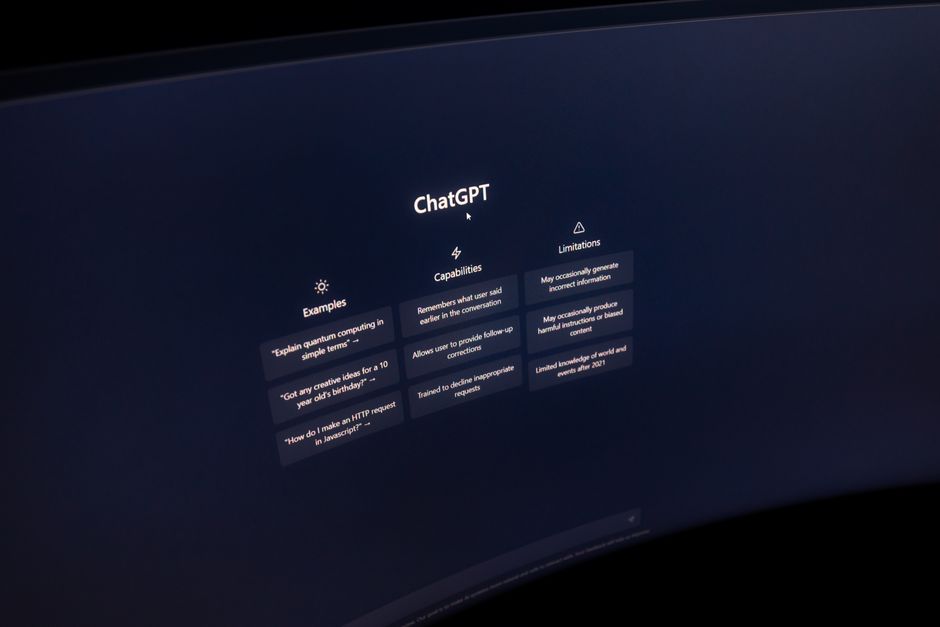
Claude stands out in the crowded AI assistant landscape due to several distinctive features that set it apart from alternatives like ChatGPT and Google Gemini. The first major advantage is Claude's exceptionally large context window, which supports up to 200,000 tokens in a single conversation. This means you can upload entire books, extensive codebases, or lengthy research papers and ask Claude to analyze, summarize, or extract insights from them without needing to split the content into smaller chunks. A second key feature is Claude's Artifacts system, which allows the AI to generate standalone content -- such as documents, code snippets, diagrams, interactive web apps, and data visualizations -- in a separate panel alongside the conversation. This makes it easy to iterate on complex creations without cluttering the chat history. Claude also supports Projects, a workspace feature where you can organize conversations around specific topics, set custom instructions that apply to all chats within the project, and upload a knowledge base of reference documents. This is particularly powerful for teams working on shared initiatives. Plus, Claude offers a sophisticated analysis mode that can process structured data from spreadsheets and databases, perform calculations, and generate insightful reports. The voice input feature, available on mobile, allows hands-free interaction, while the image recognition capability enables Claude to describe, analyze, and answer questions about uploaded photographs, diagrams, screenshots, and illustrations.
Prompt Engineering Techniques for Better Results
Getting the most out of Claude requires understanding how to craft effective prompts -- a practice known as prompt engineering. While Claude is highly capable at interpreting natural language, following structured prompting strategies can make a big difference to the quality and relevance of its responses. One foundational technique is providing clear context and specific instructions. Instead of asking "Write a marketing email," try "Write a 300-word marketing email promoting a new project management tool aimed at small business owners. The tone should be professional but approachable, and include a call to action for a free trial." Another powerful method is using role-based prompting, where you assign Claude a specific persona or expertise. For example, "you're an experienced Python developer reviewing code for security vulnerabilities. Analyze the following script and identify any potential issues." You can also leverage multi-step prompting by breaking complex tasks into sequential stages. Start with a broad request, then refine through follow-up questions. Claude excels at iterative refinement, so treat each conversation as a collaborative dialogue rather than a single command. For analytical tasks, asking Claude to "think step by step" or "consider opposing viewpoints before concluding" often yields more thorough and balanced responses. When working with long documents, use specific extraction prompts such as "List all key arguments made in section three, along with the evidence provided for each." Finally, remember that Claude supports system prompts in Projects and the API, allowing you to set persistent instructions that shape every response in a conversation or application.
Real-World Applications for Writing and Content Creation
From what I've seen, claude shines as a writing assistant, capable of helping with virtually every stage of the content creation process. For brainstorming, you can ask Claude to generate topic ideas, outline structures, or suggest angles for articles, blog posts, newsletters, and social media content. When drafting, Claude can write full pieces based on your outlines, adapt its style to match your brand voice, and adjust tone for different audiences. One particularly popular use case is editing and revision -- paste a draft into Claude and ask it to check for grammar issues, improve sentence flow, enhance clarity, or tighten word count while preserving meaning. Claude can also help with SEO optimization by suggesting keywords, meta descriptions, and heading structures that improve search engine visibility. For academic writing, Claude can summarize research papers, help structure arguments, and provide feedback on thesis clarity. However, always verify facts and citations independently, as AI models can occasionally produce plausible-sounding but incorrect information. Content creators also use Claude to repurpose existing material: turn a blog post into a Twitter thread, a podcast transcript into a newsletter, or a video script into multiple social media captions. With the Artifacts feature, you can have Claude build tables, charts, and structured documents that can be exported directly for use in presentations or reports. The combination of long-context understanding and nuanced language generation makes Claude particularly effective for long-form content like whitepapers, case studies, and ebooks.
Using Claude for Coding and Technical Tasks
Trust me on this.
Developers have embraced Claude as a powerful coding companion that accelerates development workflows and helps solve complex programming challenges. Claude supports virtually all major programming languages and frameworks, and its large context window allows it to analyze entire codebases in a single session. Common coding use cases include generating boilerplate code, debugging error messages, explaining complex algorithms, refactoring existing code for better performance, writing unit tests, and converting code between programming languages. When working with Claude on coding tasks, providing the full error message, relevant code snippets, and expected behavior yields the most accurate solutions. Claude can also review pull requests, suggest architectural improvements, and help plan software projects by breaking down requirements into technical specifications. One powerful workflow is to have Claude generate a code skeleton, then iterate on it through follow-up prompts to refine functionality, add error handling, and optimize performance. The Artifacts feature is particularly useful here -- Claude can render code as interactive HTML pages, allowing you to preview front-end components, visualizations, and prototypes directly in the browser. For API integration work, Claude can read API documentation (which you can upload as a PDF or paste directly), understand authentication flows, and generate client code in your language of choice. While Claude's coding capabilities are impressive, always review generated code for security vulnerabilities and ensure it follows your team's best practices before deploying to production.
Claude Projects and Collaborative Workflows
Really well, actually.
The way I see it, claude Projects represent one of the platform's most powerful organizational features, enabling users to group related conversations, share knowledge, and maintain consistent context across multiple sessions. To create a Project, navigate to the Projects section from the sidebar and click "Create Project." You can give it a name, description, and upload relevant reference documents that Claude will use as background knowledge for all conversations within that project. This is ideal for ongoing initiatives like a software development project where Claude needs to understand the codebase architecture, a research project with dozens of source papers, or a content marketing campaign with brand guidelines and editorial calendars. Within a Project, you can set custom instructions that apply to every conversation, ensuring Claude consistently follows your preferred format, tone, and constraints. Team members can contribute to shared Projects under Claude Team and Enterprise plans, making it a collaborative AI workspace. You can also review conversation history across the project, revisit earlier solutions, and build on previous work without losing context. Projects sync across devices, so you can start a conversation on desktop and continue it on mobile. For power users, combining Projects with Artifacts creates a powerful workflow: use the Project knowledge base to ground Claude's understanding, generate Artifacts as deliverables, and iteratively improve them through focused conversations.
My Honest Take
- Claude AI offers a 200,000-token context window, enabling analysis of entire books, codebases, and lengthy documents in a single conversation, far exceeding most competitors.
- Key features include Artifacts for generating standalone content, Projects for organizing themed workspaces, and multimodal support for images and file uploads. — your experience may differ, but this worked for me
- Effective prompt engineering -- including role-based prompting, multi-step refinement, and specific instructions -- dramatically improves response quality and relevance.
- Claude serves as a versatile tool for writing, editing, SEO optimization, and content repurposing across formats and platforms.
- Developers can leverage Claude for code generation, debugging, refactoring, code review, and architectural planning across virtually all programming languages.
- Claude Projects enable team collaboration, persistent context, and shared knowledge bases for ongoing initiatives. — took me a while to figure this out
- Always verify AI-generated facts and code for accuracy and security before publishing or deploying.
If you are exploring other AI tools, check out our ChatGPT Complete Guide for a comparison, or our Google Gemini User Guide to understand the differences between leading AI assistants.