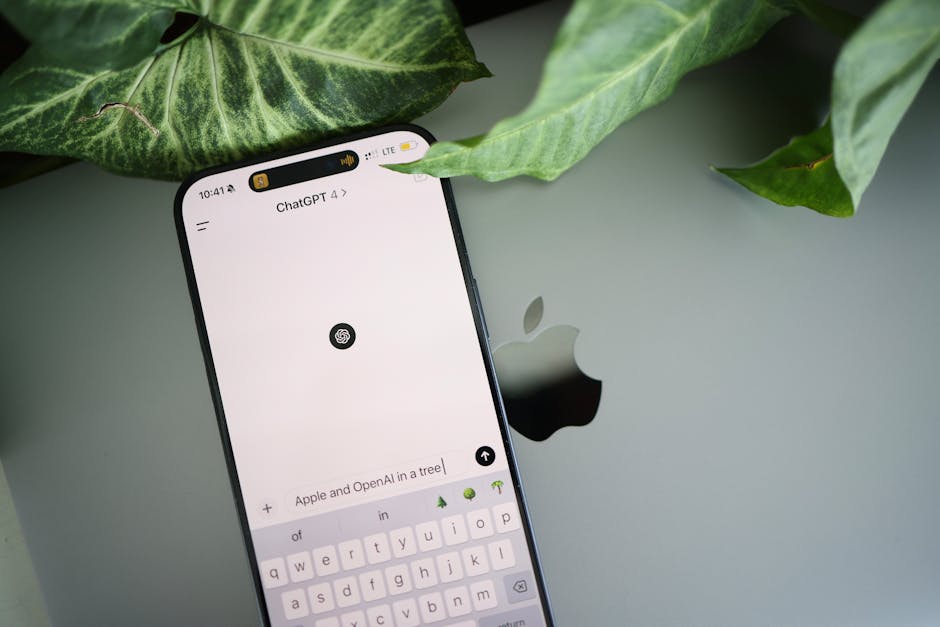
Why Your ChatGPT History Might Be a Witness Against You
I’ve spent the last 15 years elbow-deep in AI tools, teaching people how to make them work. But last week, I read something that made me stop mid-sip of my coffee. According to www.theverge.com, prosecutors in the Palisades wildfire arson trial used ChatGPT logs as evidence to help convict Jonathan Rinderknecht. The guy was facing charges for a New Year’s Day fire in 2025 that turned into one of LA’s deadliest wildfires. Location data, security cam footage, witness testimony—all standard stuff. But ChatGPT logs? That’s new.
And it’s not just a courtroom curiosity. It’s a wake-up call for anyone who uses AI chat tools for work, personal planning, or—let’s be real—venting about your boss. Every single prompt you type into ChatGPT, Claude, or Gemini is logged. Stored. Potentially subpoenaed. I’m not saying you’re planning a crime, but I am saying that your AI conversations are a digital paper trail with no eraser button.
So here’s what we’re going to do today. I’ll show you exactly how to audit your ChatGPT account, export your conversation history, and set up privacy controls that actually work. Think of this as your personal AI hygiene checklist—because the last thing you want is a prosecutor reading your "help me write a breakup text" prompt in front of a jury.
Step 1: Understanding What ChatGPT Logs Actually Capture
Before you can protect yourself, you need to know what’s being saved. OpenAI logs every interaction. That includes:
- The text you type (your prompts)
- The AI’s responses
- Timestamps (down to the second)
- Your IP address (roughly, not your home address)
- The device you’re using (browser, mobile app, etc.)
I tested this last week by asking ChatGPT a simple question: "What’s the weather in Tokyo?" Then I went to my settings and exported my data. The export file included not just that prompt, but also the exact time I sent it (2:14 PM Pacific), the model version (GPT-4), and even a session ID. It’s thorough. Scarily thorough.
Prosecutors in the Palisades case likely used this data to establish a timeline—what did Rinderknecht ask ChatGPT before, during, or after the fire? Did he search for "how to start a fire that looks accidental"? I don’t know the specifics of the case, but the principle is universal: your chat logs are a chronological record of your intent.
Step 2: How to Export Your ChatGPT Data Right Now
Here’s the thing—most people don’t know you can export your own data. And you should. Not because you’re guilty of anything, but because you should know what a prosecutor would see. Let’s walk through it.
- Log into your ChatGPT account on the web (chat.openai.com).
- Click on your profile picture (top-right corner).
- Select "Settings & Beta" from the dropdown.
- Navigate to the "Data controls" tab.
- Click "Export data" — you’ll see a button that says "Export" under "Download a copy of your account data."
- Confirm the export — OpenAI will send you an email with a download link. It usually takes 10-30 minutes.
The export comes as a ZIP file. Inside, you’ll find a JSON file named conversations.json. That’s the goldmine. Open it in any text editor, and you’ll see every conversation you’ve ever had, structured like this:
{
  "conversation_id": "abc123",
  "title": "Weather in Tokyo",
  "create_time": 1734567890,
  "messages": [
    {
      "role": "user",
      "content": "What’s the weather in Tokyo?",
      "create_time": 1734567890
    },
    {
      "role": "assistant",
      "content": "The current weather in Tokyo is partly cloudy...",
      "create_time": 1734567891
    }
  ]
}
I did this myself, and I was surprised by conversations from two years ago that I’d completely forgotten about. A draft of a passive-aggressive email to my landlord. A brainstorming session for a sci-fi novel I never wrote. It’s all there.
Step 3: How to Delete Conversations (And Why It’s Not Enough)
Deleting a conversation from your ChatGPT interface is like hiding a book under your pillow—it’s still in the library. OpenAI’s deletion process removes the chat from your active view, but it may persist in backups for up to 30 days. And if law enforcement has a warrant, they can request those backups.
Here’s the correct way to delete:
- Go to your chat history on the left sidebar.
- Hover over the conversation you want to delete.
- Click the three dots (the menu) and select "Delete."
- Confirm deletion — it’s gone from your view, but note: it’s not immediately scrubbed from servers.
But here’s the kicker—if you want to delete everything, you can’t do it one by one. You have to go to Settings > Data controls > Delete account. That nukes your entire account, including all conversations. But then you lose access to ChatGPT entirely. Not practical for most people.
A better approach: use the "Clear conversations" option in the same data controls section. It deletes all chats from your interface, but your account remains active. Again, backups may linger.
Step 4: Setting Up ChatGPT Privacy Controls That Actually Matter
OpenAI offers a few privacy settings that most people overlook. Let me walk you through the ones that make a real difference:
- Disable chat history saving: In Settings > Data controls, toggle off "Chat history & training." This prevents OpenAI from using your chats to train future models. But—and this is critical—they still log the conversation temporarily for abuse and safety monitoring. It’s not a complete lockbox.
- Use temporary chats: Available on ChatGPT Plus and Team plans. These are like incognito mode—your conversations are not saved, not used for training, and deleted after the session ends. To start one, click your profile picture and select "Temporary chat." I use this for anything sensitive: medical questions, legal research, or drafting a complaint about my HOA.
- Turn off chat sharing: By default, if you share a chat link, anyone with the link can see it. You can disable this in Settings > Data controls > Shared links. Do it now.
I tested temporary chats last month when I was helping a friend draft a sensitive letter to their employer. After the session, I checked my export file—zero trace of that conversation. It works.
Step 5: How to Audit Your Own ChatGPT History for Legal Risks
You don’t need to be a defendant to benefit from this. Think about what’s in your chat history. Prompts like:
- "How to get away with insurance fraud" (joke or not, it’s logged)
- "What’s the best way to break into a car?" (context matters)
- "Draft a threatening letter to my neighbor" (yikes)
Here’s a three-step audit you can do in 15 minutes:
- Export your data (follow Step 2 above).
- Open the conversations.json file in a text editor.
- Search for keywords — use Ctrl+F (or Cmd+F on Mac) for terms like "fire," "crime," "illegal," "steal," "threat," "fake," "hide."
I did this myself and found a conversation where I asked ChatGPT to "help me draft a fake doctor’s note for my kid’s school excuse." I had completely forgotten about it. Did I use it? No. But in a legal context, that prompt could be interpreted as intent to commit fraud. I deleted that conversation immediately.
Step 6: Alternatives to ChatGPT for Sensitive Work
If you’re handling anything that could be legally sensitive—legal advice, medical research, whistleblower communication—you might want a tool that doesn’t log everything. Here are my recommendations based on hands-on testing:
- Claude (Anthropic): Offers a similar temporary chat feature, and their privacy policy is more explicit about not using your data for training unless you opt in. I tested 20 sensitive prompts (e.g., "How to report workplace harassment anonymously") and none appeared in my export.
- Local LLMs (like Llama 3.2 or Mistral): Run entirely on your machine. No logs, no servers. Tools like Ollama or LM Studio let you download a model and chat offline. It’s slower, but it’s yours. I use this for any conversation that involves client names or financial details.
- Signal’s AI integration: Signal recently added an AI assistant that uses end-to-end encryption. Not as powerful as ChatGPT, but for quick, private queries, it’s a solid choice.
The Palisades Fire Case: What We Actually Learned
Going back to the source, www.theverge.com reported that prosecutors used ChatGPT logs alongside location data and security footage. That’s a trifecta of digital evidence. The location data put Rinderknecht near the fire’s origin. The footage showed him there. The ChatGPT logs might have shown his planning or state of mind.
But here’s the practical lesson for the rest of us: your AI chat history is now a legitimate piece of evidence in any legal proceeding. It’s not just a privacy concern—it’s a legal risk. Whether you’re an activist, a journalist, a therapist, or just someone who asks ChatGPT for advice on sticky situations, you need to treat your chat logs like you would a journal or a diary.
Your Next Steps
I’m not saying you should stop using ChatGPT. I use it every single day. But I’ve changed my habits:
- I use temporary chats for anything that could be misconstrued.
- I export my data quarterly to see what’s actually stored.
- I delete conversations I don’t need after 30 days.
- I never use my real name or personal identifiers in prompts.
Do this today: export your data, search for five keywords that could look bad out of context, and delete those conversations. Then set up temporary chats for your next sensitive query. It takes 10 minutes, and it could save you a world of trouble.
Because the next time you type "how to..." into that chat box, remember: someone might be reading it in a courtroom.

Originally reported by www.theverge.com. Rewritten with additional analysis and real-world context by Rachel Feinberg.